
[2026 Edition] Complete Guide to the Signature Image for Japan's Online Passport Application [With Screenshots]

Since March 2025, Japan's passport applications can be filed online. Instead of signing the application form at a counter, you now submit a "signature image": a photo of your handwritten signature taken with your smartphone or similar device.
This signature image is printed in your new passport, so it matters.
If there is a problem, you may have to submit it again, so be sure to follow the rules set by Japan's Ministry of Foreign Affairs exactly.
Here is a step-by-step guide to creating and submitting your signature image for the online passport application!
For the online passport face photo application, see here ↓
Contents
- Avoid mistakes: what to check before making your signature image
- Your smartphone is enough! 4 tips for taking the photo
- Image requirements for online submission
- [Steps] How to submit your signature image in the online passport application
・① Log in to Myna Portal
・② Select "Obtain a passport (new application)"
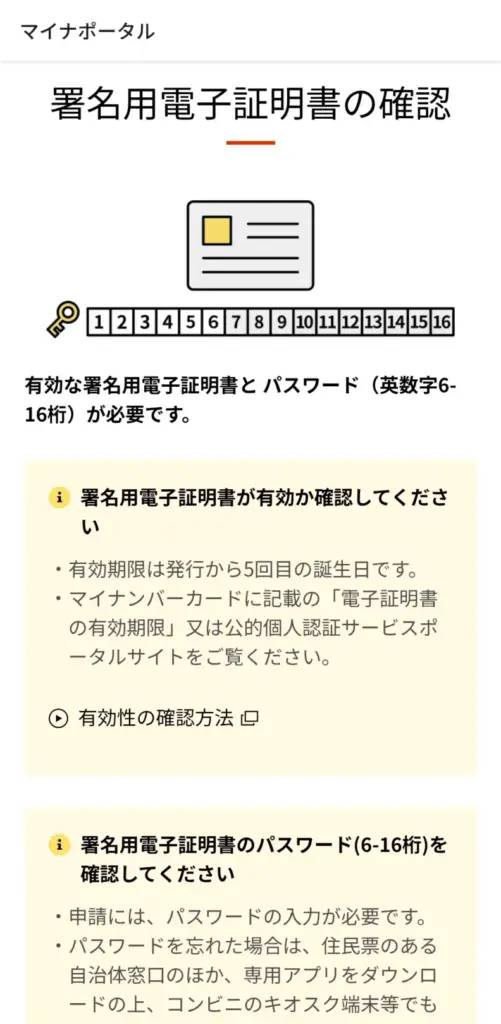
・③ Check the pickup location and your digital signature certificate
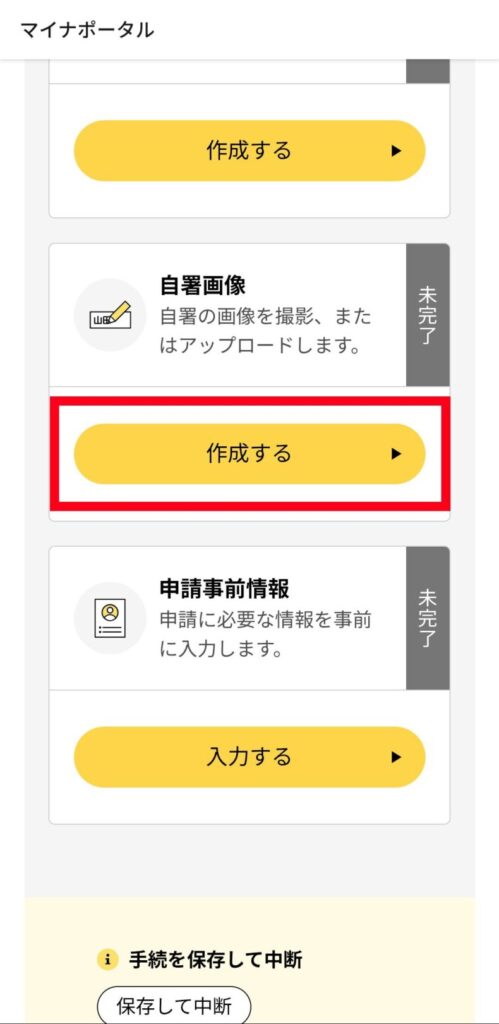
・④ Select "Create" for the signature image
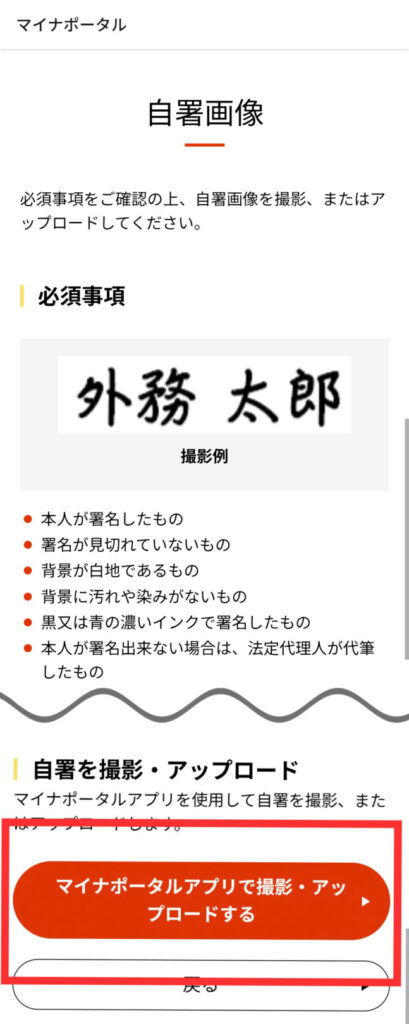
・⑤ Review the required items
・⑥ Choose how to create the signature image
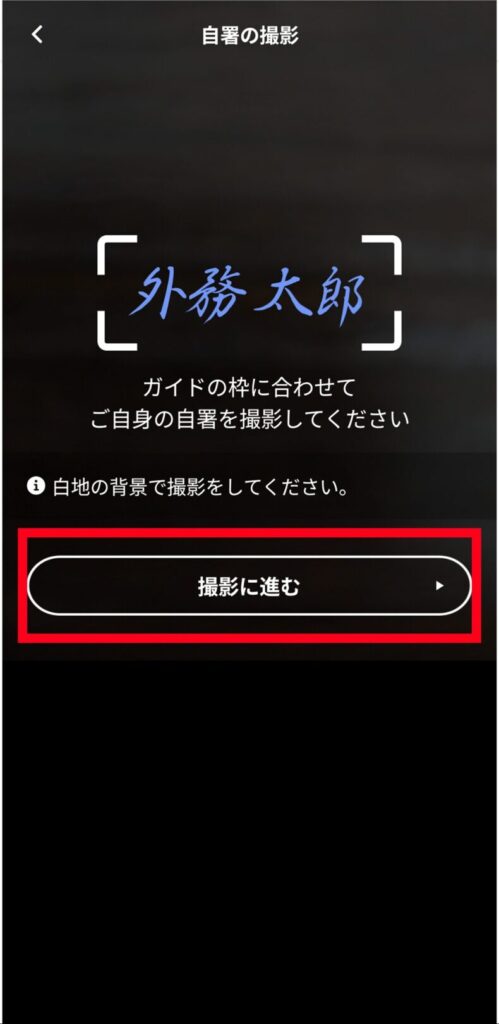
・⑦-1 If you choose "Launch the camera and take a photo"
・⑦-2 If you choose "Upload a signature image"
・⑧ Done
- Summary | Get through the online application smoothly
Avoid mistakes: what to check before making your signature image
Based on the rules of Japan's Ministry of Foreign Affairs (MOFA), be sure to check the following before you write and photograph your signature.
Reference (in Japanese): https://www.mofa.go.jp/mofaj/toko/passport/page24_002222.html
| What to check | Details |
| Who signs | The signature must be written by the applicant. If the applicant cannot sign, it may be written on their behalf by a legal guardian or other legal representative. |
| Ink color | Sign in dark black or blue ink. |
| Paper | Use plain white paper with no pattern (no ruled lines). It must be free of dirt and stains, and the back of the page must not show through. |
| Writing | Faint, thin, or smudged writing is not accepted. Lines so thick that the letters run together are also not accepted. |
* If a legal representative signs on the applicant's behalf, they must write their own name and their relationship to the applicant below the applicant's name.
Your smartphone is enough! 4 tips for taking the photo
If you are taking the photo of your signature yourself, keep these points in mind.
1. Line up your signature with the guide
Take the photo so that your whole signature fits inside the guide frame shown in the app.
2. Make sure nothing other than your signature is in the shot
Check that no writing or patterns from the back of the paper show through behind your signature, and that there are no paper fibers or specks of dust.
3. Avoid shadows
Hold the camera some distance from the paper and shoot in a bright place, straight down from above.
Be careful that your body does not cast a shadow over the paper while you shoot.
4. Make sure the writing is in focus
Blurry writing cannot be read correctly, so check that the image is sharp and in focus.
Image requirements for online submission
If you upload a signature image that you prepared in advance, it must meet the following format requirements.
| Applying in Japan | Applying from overseas | |
| File format | jpg | jpg, jpeg, bmp, png |
| File size | Within 200 KB | 20 KB to 2 MB |
| Other | Size: 788 px wide × 284 px high | Color mode: RGB color |
The requirements differ between applications made in Japan and those made overseas, so be careful.
[Steps] How to submit your signature image in the online passport application
Here is how to submit your signature image.
If you are already logged in, skip ahead to step ④.
① Log in to Myna Portal
You complete the procedure by logging in to Myna Portal, the Japanese government's online services portal.
▼ Log in here
https://myna.go.jp/html/passport_information.html
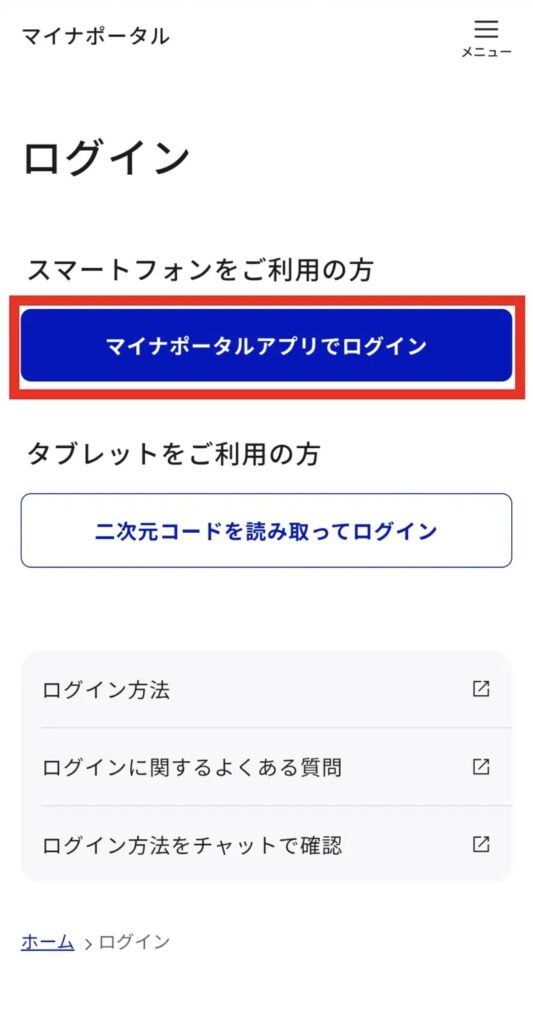
Log in with the Myna Portal app
→ Enter the 4-digit user authentication password for your My Number Card (Japan's national ID card with an IC chip)
→ Scan your My Number Card

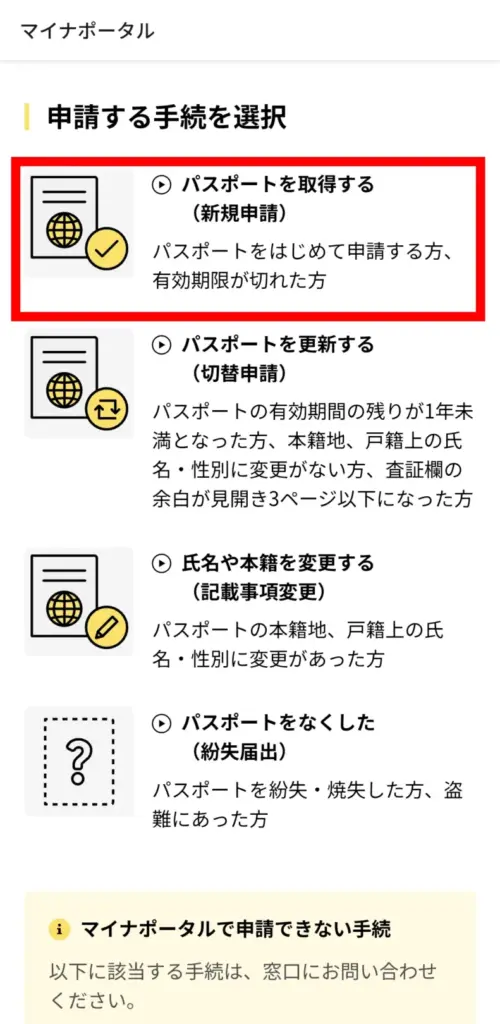
② Select "Obtain a passport (new application)"
Scroll down and tap "Obtain a passport (new application)."
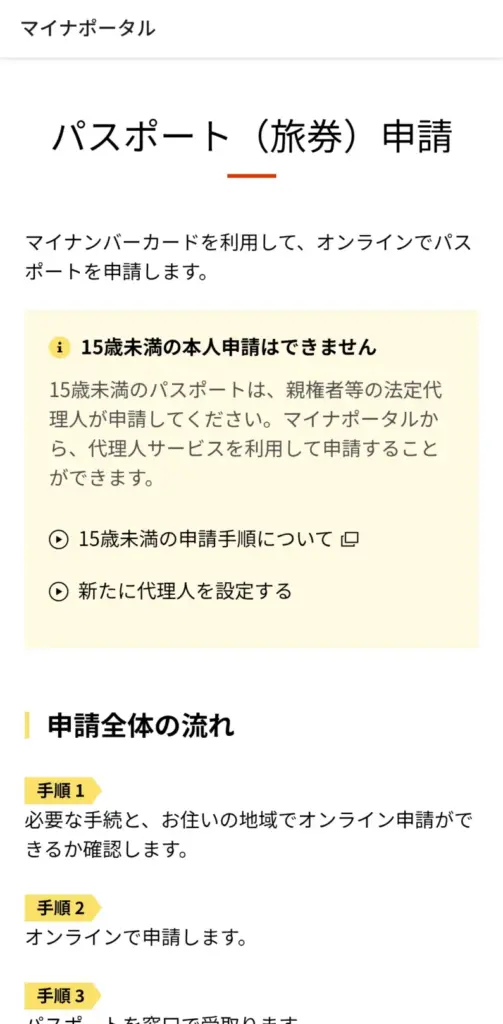
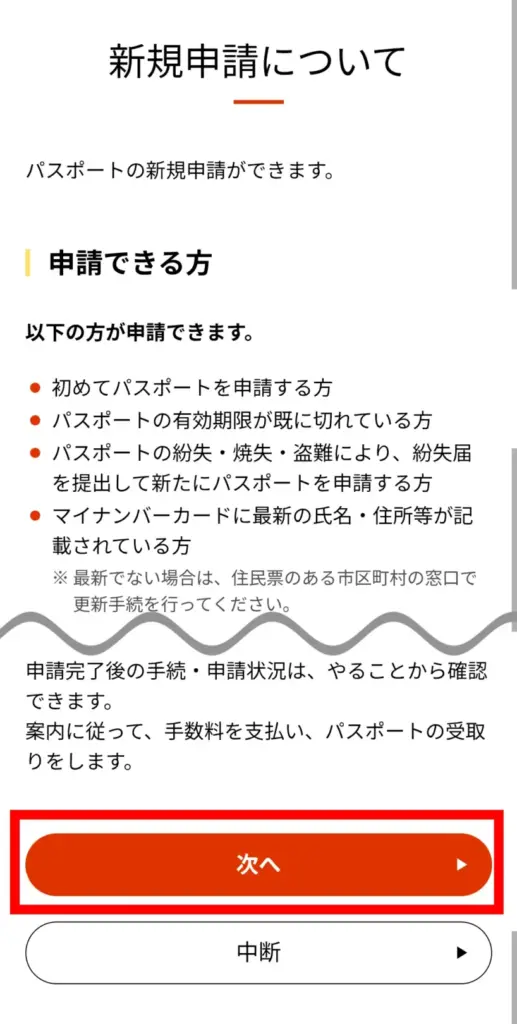
③ Check the pickup location and your digital signature certificate
Read the instructions, scroll to the bottom, and tap "Next."
After reviewing the information on new applications, scroll to the bottom and tap "Next."
→ Choose the office where you will pick up your passport
The address you enter is the one printed on your My Number Card.
Before applying, be sure to confirm that you can pick up your passport there.
→ Read the notes, tap "Agree" to continue, and check the following two items:
・That your digital signature certificate is valid
・Your digital signature certificate password (6 to 16 characters)
④ Select "Create" for the signature image
⑤ Review the required items
After reviewing the required items, scroll down and tap "Take a photo and upload with the Myna Portal app."
⑥ Choose how to create the signature image
To photograph your signature now, choose "Launch the camera and take a photo."
If the image is already saved on your device, choose "Select and upload."

⑦-1 If you choose "Launch the camera and take a photo"
Follow this section if you want to take the photo on the spot.
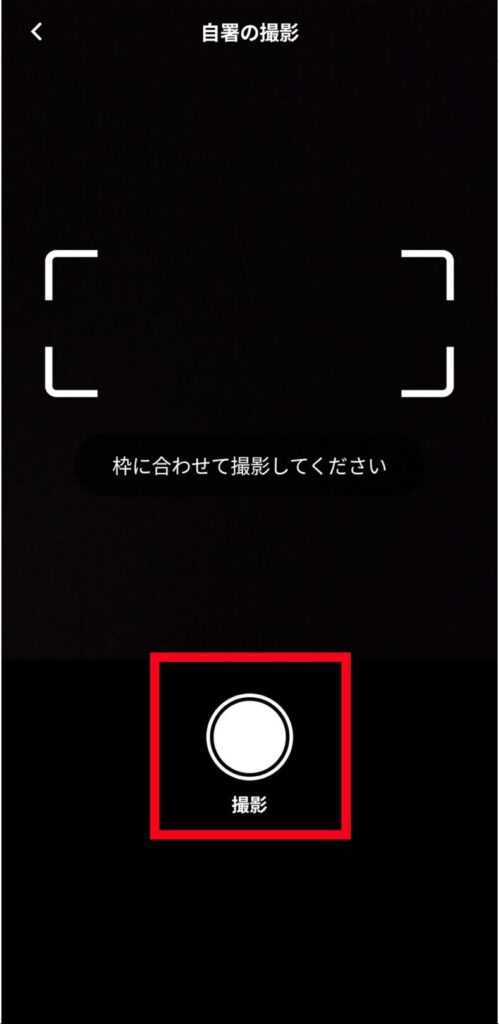
Tap "Proceed to shooting" → line up your signature with the guide frame and press the shutter button
⑦-2 If you choose "Upload a signature image"
Follow this section if you are uploading an image file you prepared in advance.
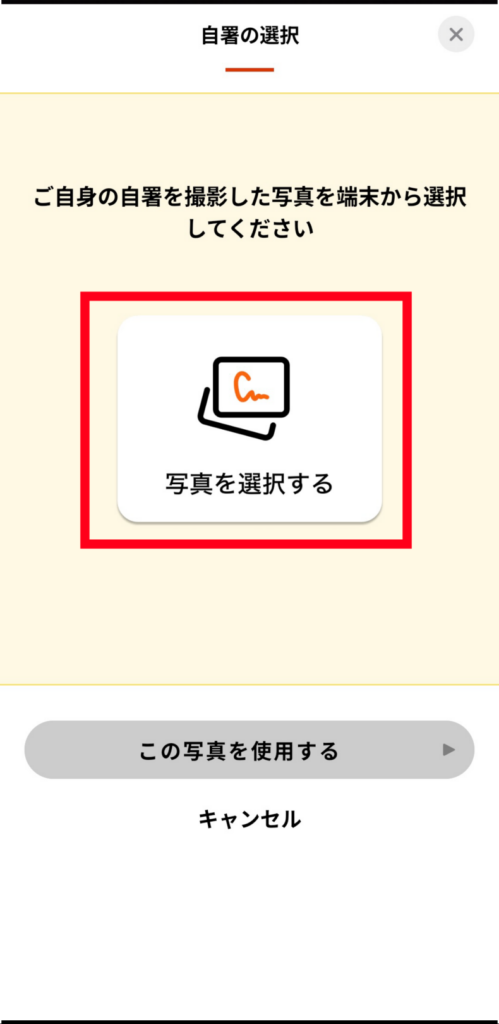
Tap "Select a photo"
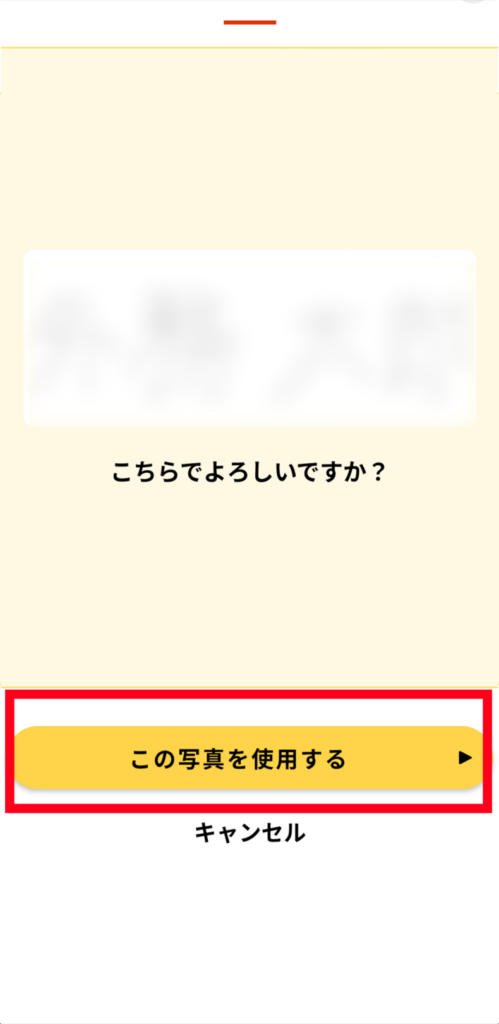
→ If the image you chose is correct, tap "Use this photo"
→ If everything looks fine, tap "Next"
⑧ Done
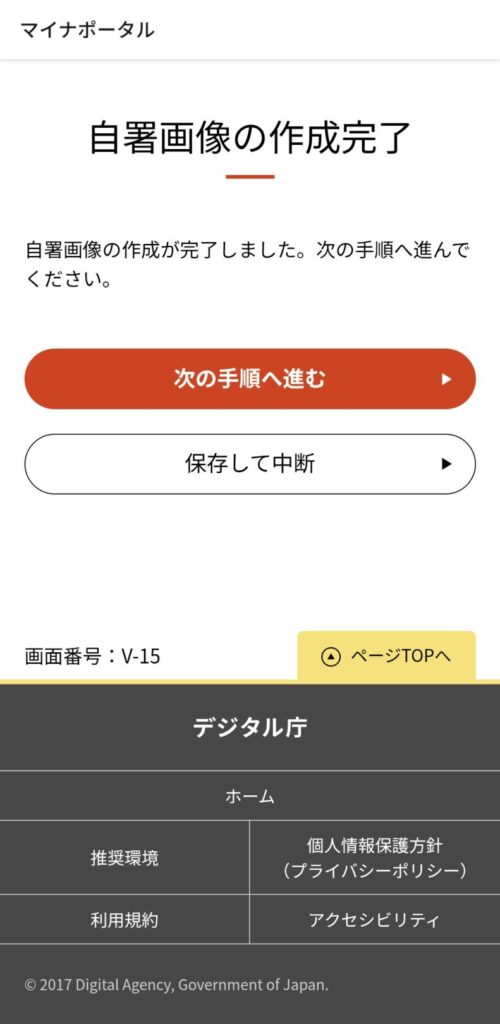
That completes the upload of your signature image.
Need a passport photo in Shinjuku? We recommend 19Studio!
19Studio in Shinjuku takes passport photos!
Our staff give you an outside perspective, advising on posture and expression, until you are happy with your shot.
With professional lighting that brightens your whole face, our photographers carefully help make sure your eyes, ears, and face outline are not hidden.
Retouching completely removes shadows from the background for a clear, crisp result.
We also adjust the face size, position, and framing to the exact pixel as required by the online passport application, and give you digital data that meets the rules.
With high-quality face photo data from a professional photo studio, you can go into the online application with confidence.
Same-day booking and same-day delivery are available, so we are a good choice if you need a passport photo in a hurry!

Summary | Get through the online application smoothly
Once you have your signature image ready as digital data, you can finish the application at any time without going to a counter.
The key is to follow the image requirements and the rules for handwriting.
Prepare a signature image that meets the rules, and move through the online application with ease!

- I'm involved in 19Studio as a new business of an IT company, and my day job is advertising and marketing. I'm good at thinking about how to get the right information to the people who need it, and I work on making our prices, services and booking as clear and easy as possible.
Latest posts
 ID photoSeptember 16, 2026【2026 Edition】A Must-See for Students Taking the AO Admissions Exam! Tips for ID Photos That Bring You Closer to Passing
 Concerns about Job HuntingSeptember 14, 2026【Latest 2026 Edition】Is This Photo Okay? Retake Standards for Job-Hunting ID Photos & Checklist to Avoid Rejection
 Concerns about Job HuntingSeptember 11, 2026Is Self-Applied Makeup OK for Job Hunting? Points for Making a Good Impression and Tips for Success

